TG Log In
TG Log In
⚠️ Attention!
When logging in through the software, enter your phone number first, then open the verification webpage linked to that number.
Otherwise, you may encounter a “too many attempts” or “frequent operations” error.
I. Entering Your Phone Number
1. On PC
1. Open the Telegram desktop client or web version: https://web.telegram.org/k/
2. Select “Log in by phone number.”
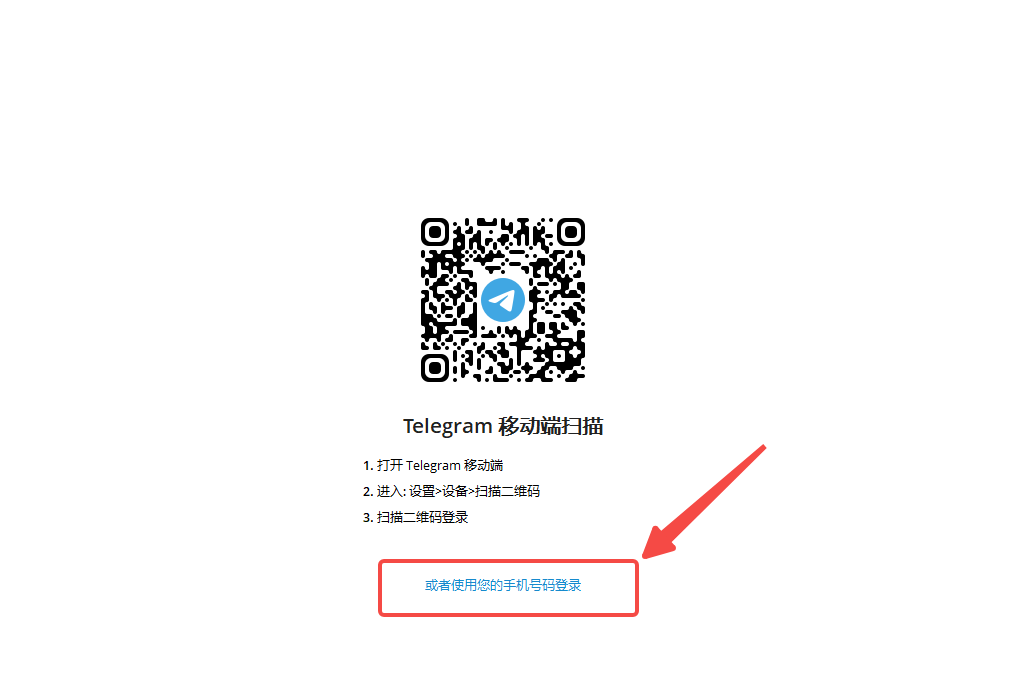
3. Enter your phone number and click Next.
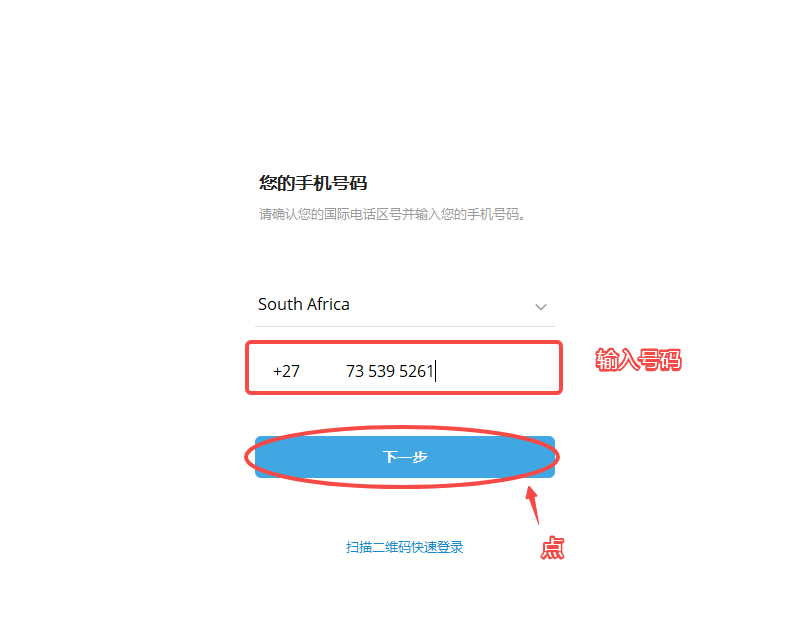
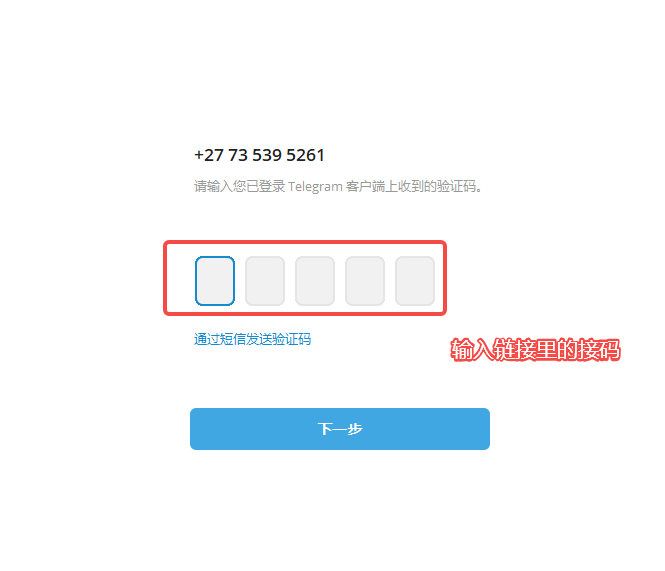
4. When the system prompts for a verification code, open the provided link to retrieve the code, then enter it here.
2. On Mobile
1. Enter your phone number and tap the arrow icon to proceed.
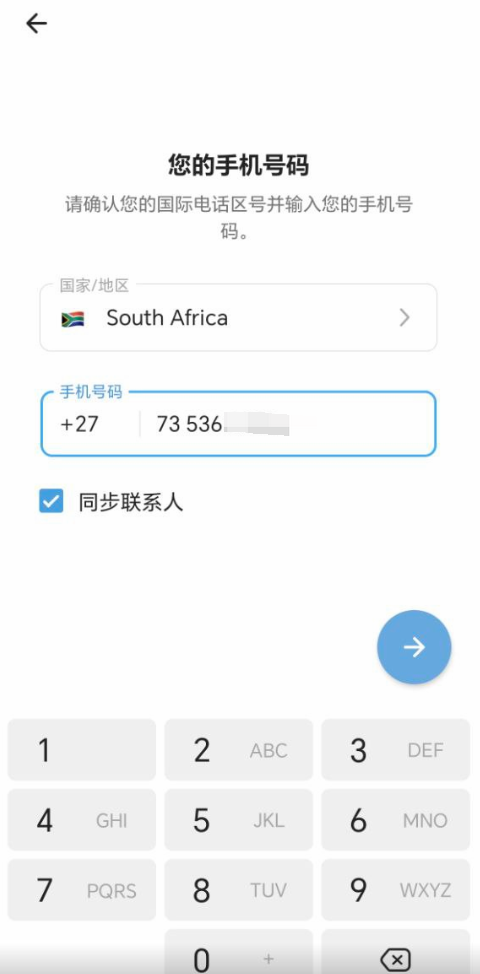
2. When prompted for a verification code, open the link on your computer to get the code, then enter it on your phone.
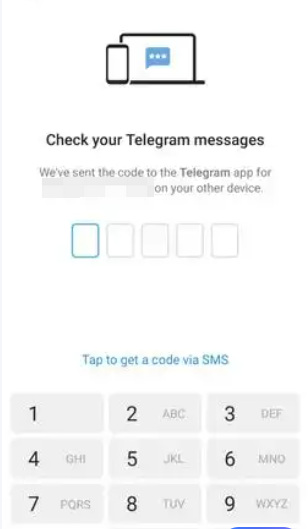
2. Receiving the Two-Step Verification Code
1. Open the link on your computer. You’ll see a page displaying two verification credentials — one verification code and one password.
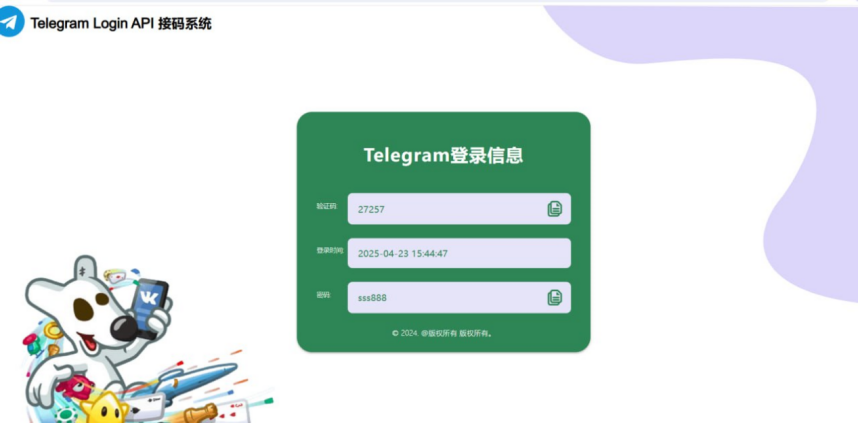
2. Copy the verification code and paste it into the Telegram login verification page.
3. Important Notes
1. If you encounter an error: wait for the cooldown period to end, then try again.

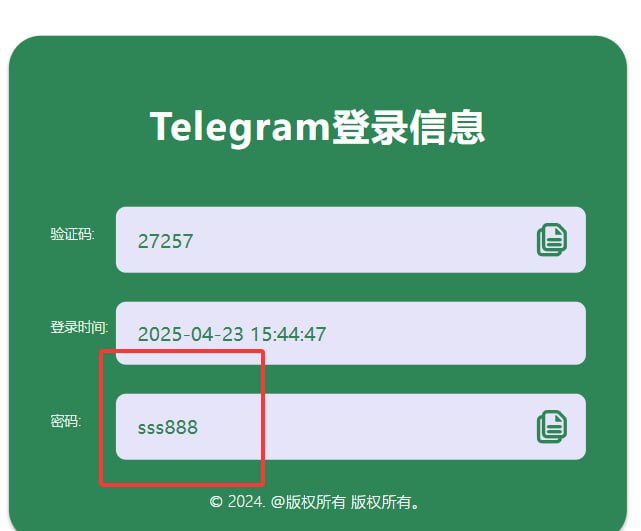
2. Remember the password shown under “Telegram Login Info” on the API website.
- The first time you log in on a PC, you’ll need to enter this password.
- If forgotten, resetting it requires a 7-day waiting period before re-binding your email.
3. About SMS (API) verification codes:
- The Telegram verification API link is short-lived, so please complete login as soon as possible.
- After successful login, keep at least one device logged in. No secondary API verification will be provided.
- Do not log out of a successfully logged-in device — future verification codes will be sent to that same device.
Was this article helpful?