Methods of Facebook login
Methods of Facebook login
The methods you have to prepare: Google chrome, VPN
Account (Using a real-person account as an example):
Account:1000267469****
Password:dxhzyu***
Two-factor-authentication(2fa):PQOGUTHWXCZYNGQY5MPFUMI722******
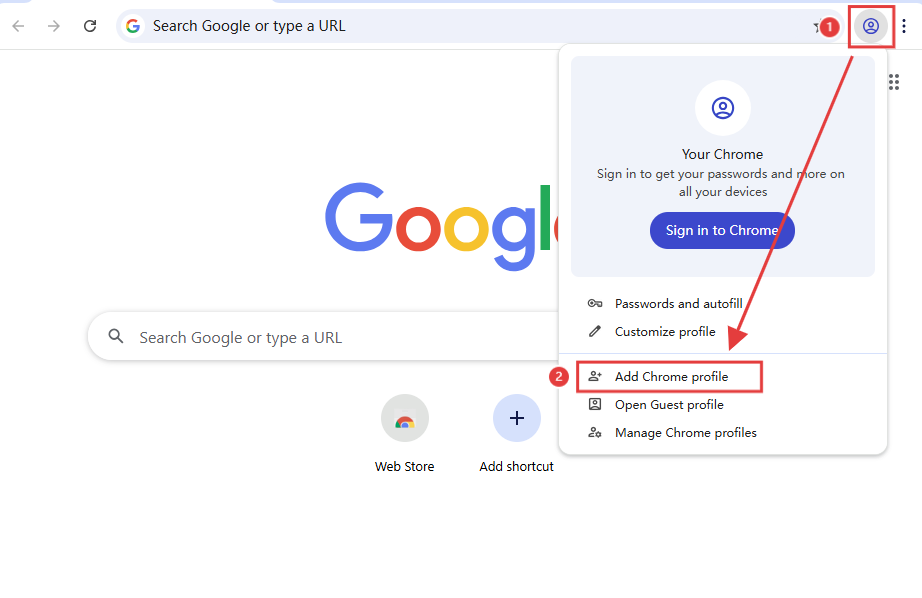
1. Add a chrome profile
Open Google Chrome, click the user settings icon in the top-right corner, then click Add a Chrome profile.
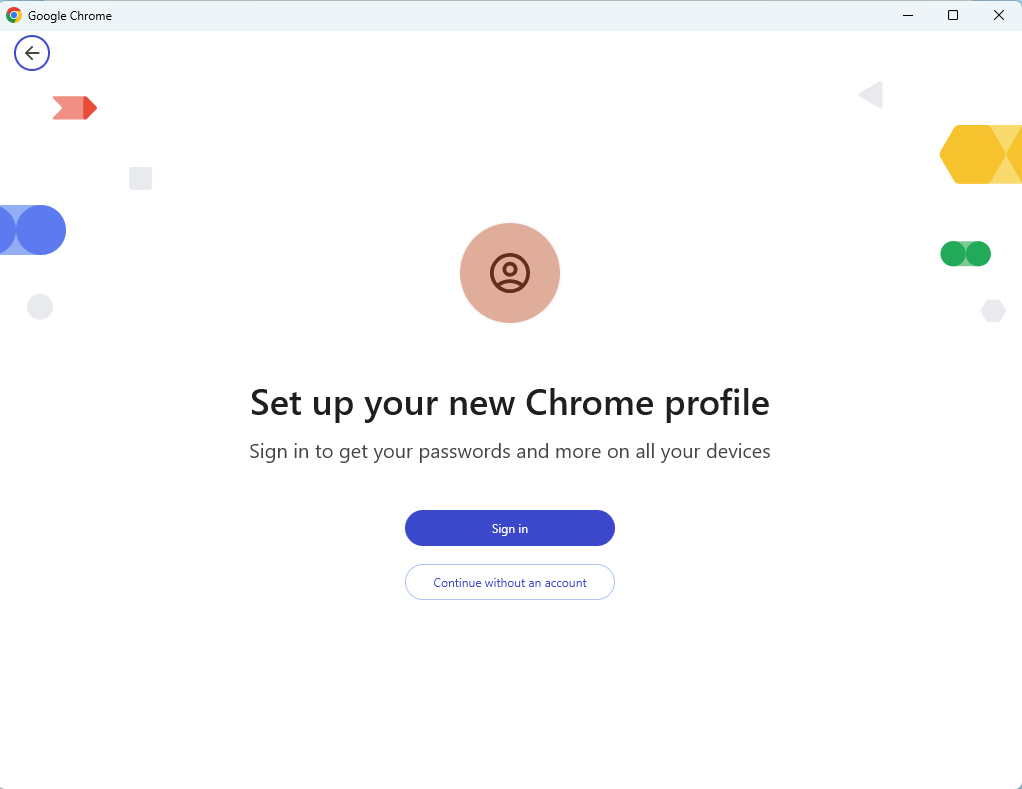
The browser will open a new window displaying the “Set up your new Chrome profile” screen. You can choose to either “Sign in” or “Continue without an account.”
2. login
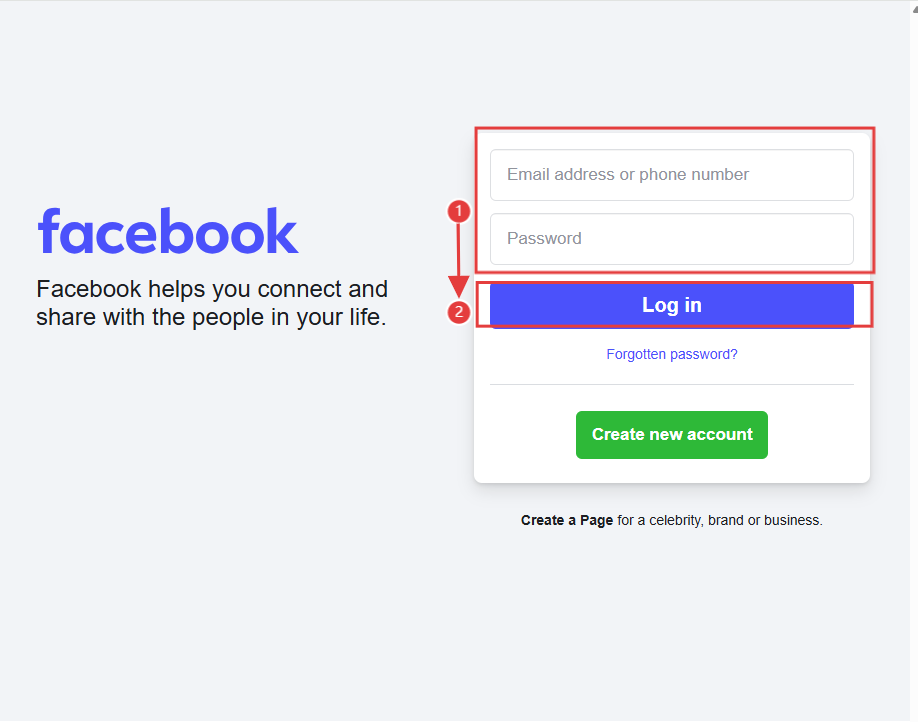
Open the Facebook website, then enter your email address or phone number and password to log in.
website:https://facebook.com
3. Two-factor authentication
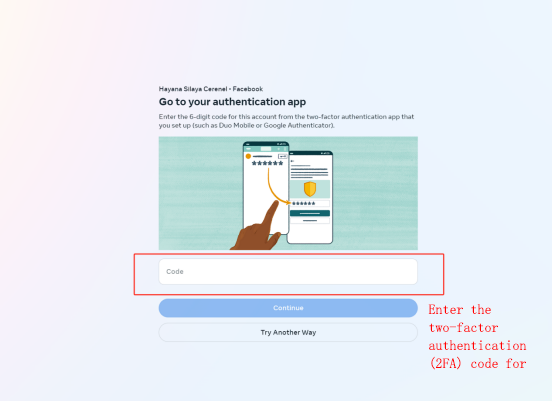
After logging in, you will be directed to the two-factor authentication screen, where you need to enter the verification code.
3.1 Get the verification code
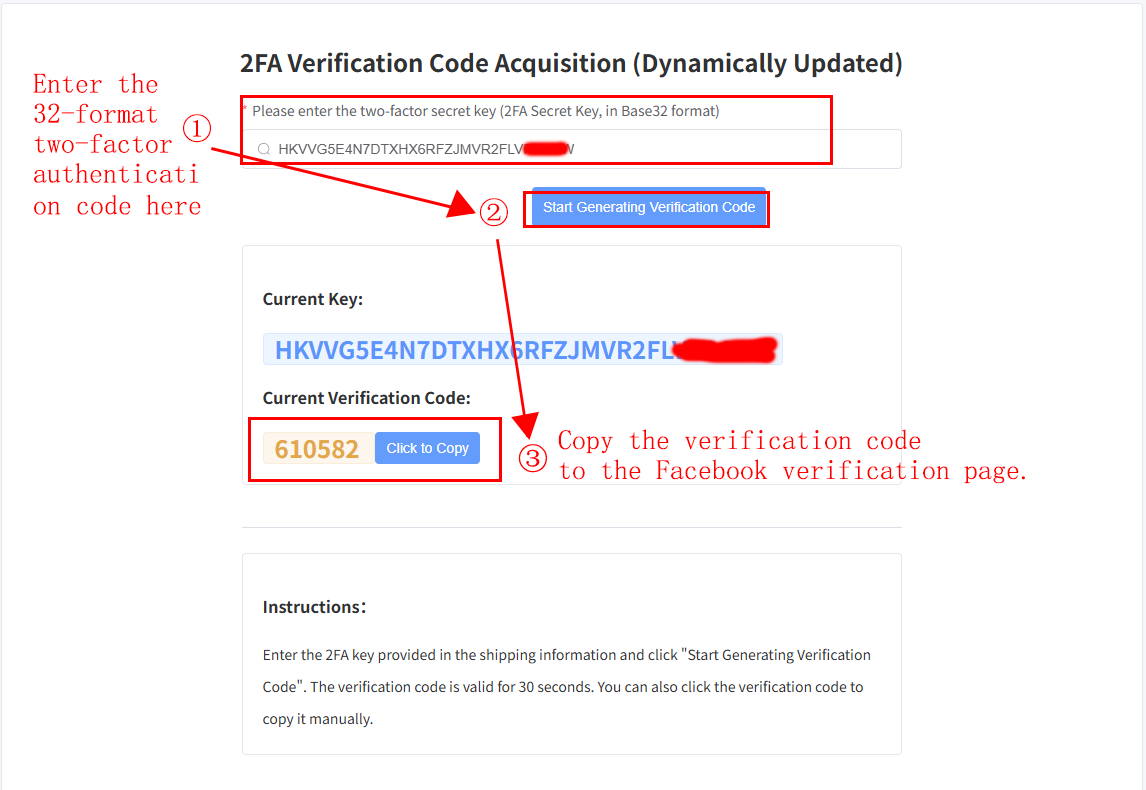
- Open the website to get the two-factor authentication code: https://www.metaspanmall.com/fb-2fa-code
- Enter the 32-format two-factor authentication code in the “Please enter the two-factor secret key” field, then click “Start generating verification code.”
- Click “Click to Copy” next to the “Current Verification Code,” paste it into the “Code” field on Facebook's two-factor authentication page, and then press “Continue.”
3.2 Important Notes
- Format:The two-factor authentication code is in base-32 format. Ensure correct replication when copying.
- Time:Verify computer time matches Beijing Time precisely. A one-minute discrepancy is unacceptable.
3.3 Other Forms of Verification
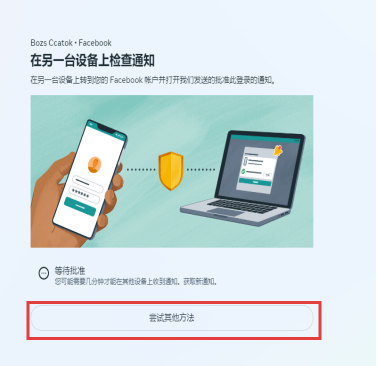
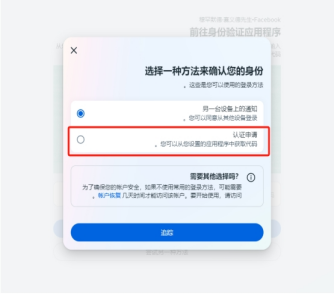
If you encounter a cross-device verification scenario as shown in the figure, click “Try Other Methods,” then select “Authentication Request.” Repeat the steps to get the two-factor verification code as described earlier.
4. Confirm
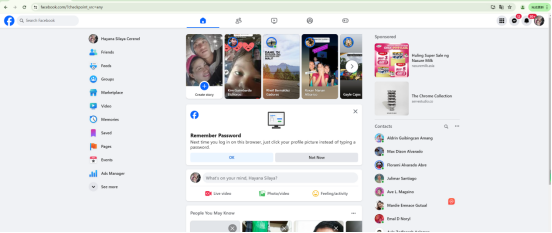
After completing two-factor authentication, you will be automatically redirected to the “Trust the device” screen. Click “Trust the device” to finish the login process.
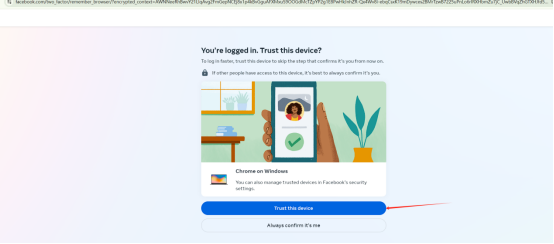
The login completion interface is as follows:
Was this article helpful?